
Download WMF Viewer – Free WMF Viewer for Mac, Convert & View WMF Files
Overview
WMF Viewer is a lightweight, purpose‑built utility that lets macOS users open, preview, and convert Windows Metafile (WMF) graphics without the need for a full‑blown Windows environment. WMF, a legacy format that mixes vector outlines with embedded bitmap data, still appears in many legacy clip‑art libraries, old presentation decks, and specialized design assets. Until recently, macOS offered no native way to display these files, forcing users to rely on cumbersome work‑arounds or expensive third‑party suites.
WMF Viewer fills that gap by providing a simple, secure, and free solution for anyone who needs to view or migrate WMF content to modern formats. The app supports both single‑file and batch conversions, offers a handful of DPI presets for raster output, and includes intuitive navigation controls such as arrow‑key browsing and a rotation dial. While the feature set is intentionally narrow—focusing on viewing and conversion rather than full‑scale editing—it does exactly what it promises: a fast, reliable bridge between the Windows WMF world and the macOS ecosystem.
Whether you’re a graphic designer cleaning up an old asset library, a teacher updating presentation material, or an office worker who just needs to extract a logo from a legacy file, WMF Viewer delivers a secure, no‑frills experience that respects both your time and your budget.
Key Features of WMF Viewer
- Native macOS support for opening WMF and EMF files.
- One‑click conversion to popular vector formats (PDF, EPS) and raster formats (JPG, PNG, GIF, BMP, TIFF, PSD, PICT, SGI).
- Batch conversion capability – process multiple files simultaneously with “Convert All”.
- Four DPI presets (72, 150, 300, 600) for high‑quality raster output.
- Simple navigation via arrow keys and a rotation dial for on‑screen image orientation.
- Drag‑and‑drop interface for quick file import.
- Secure, offline operation – no internet connection required.
- Free to download and use, with optional donation for development support.
The feature list may appear modest compared with full‑scale graphics suites, but it reflects a focused design philosophy: give users exactly what they need to handle WMF files without the bloat of unnecessary tools. The conversion engine preserves both vector paths and embedded bitmap data whenever possible, ensuring that the output files retain visual fidelity. For example, converting a WMF logo to PDF yields a crisp, scalable vector image that can be used in print or digital layouts without loss of quality.
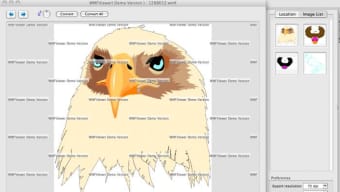
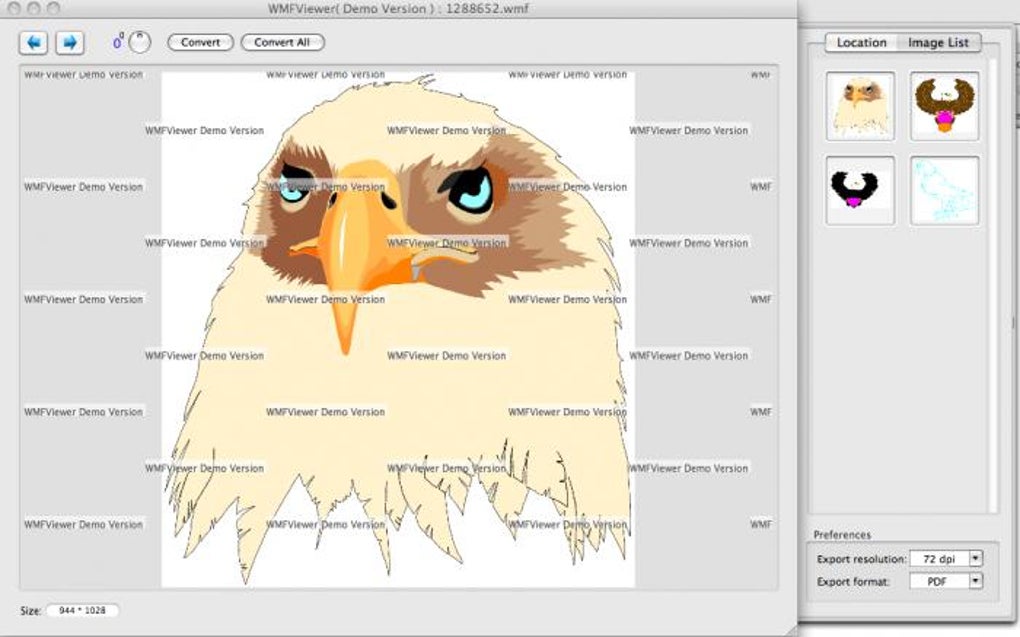
Likewise, raster conversions respect the chosen DPI, delivering sharp results for web or screen use. The batch mode is especially valuable when dealing with large clip‑art collections; you simply select a folder, choose the desired output format, and let the app handle the rest. The UI is intentionally minimalistic—an unobtrusive window with a preview pane, format dropdown, and conversion buttons—so you can focus on the task at hand rather than navigating complex menus.
Overall, WMF Viewer provides a balanced mix of functionality, speed, and ease of use that makes it the go‑to tool for anyone needing to bridge Windows WMF assets into the macOS workflow.
Installation, Setup, and Daily Workflow
Downloading and Installing
To get started, head to the official WMF Viewer download page and click the “Download for macOS” button. The installer is a standard .dmg file that works on macOS 10.12 (Sierra) and later. After the download completes, open the .dmg, drag the WMF Viewer icon into your Applications folder, and eject the disk image. macOS may prompt you with a security warning because the app is not from the App Store; simply right‑click the app, choose “Open”, and confirm you want to run it. This one‑time process ensures the software is safely installed on your system.
First Launch and Preferences
When you launch WMF Viewer for the first time, you’ll be greeted by a clean window featuring a large preview area and a toolbar at the top. The app does not require any registration or license key—just click “OK” on the welcome dialog. In the Preferences panel (accessible via the gear icon), you can set default output directories, choose your preferred DPI preset, and enable automatic deletion of source files after successful conversion if you wish. All preferences are stored locally, guaranteeing privacy and offline operation.
Viewing and Converting Files
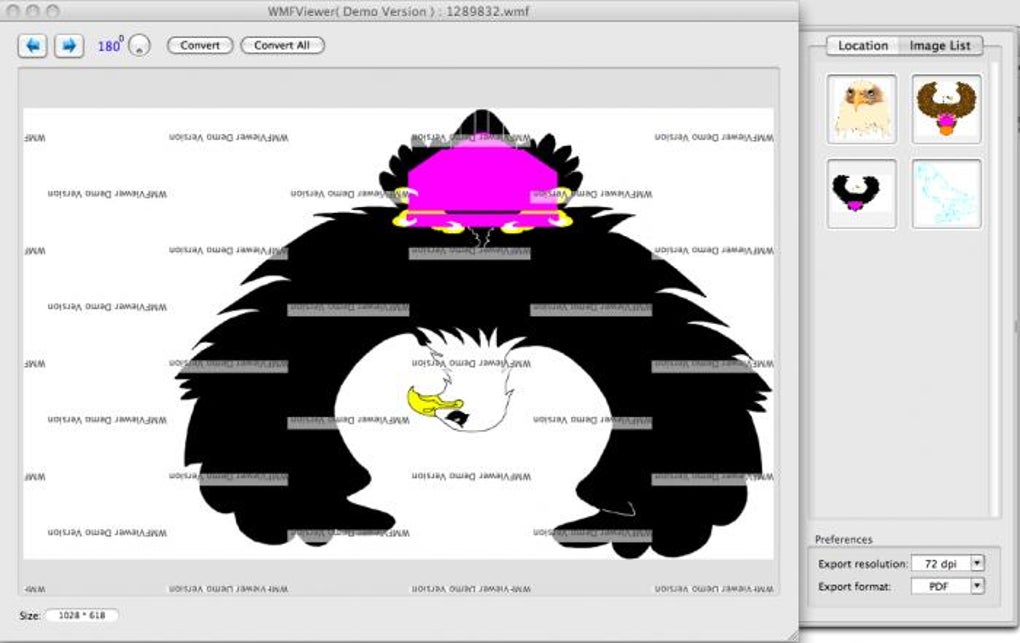
To view a WMF file, simply drag it onto the preview pane or use the “File → Open” menu. The image loads instantly, and you can navigate through a series of files in the same folder using the left/right arrow keys. If the graphic appears rotated, use the rotation dial on the right side of the toolbar to correct its orientation before conversion.
When you’re ready to export, select the desired output format from the dropdown in the bottom‑right corner. For single‑file conversion, click the “Convert” button; for batch processing, click “Convert All”. The app will display a progress bar and, upon completion, reveal the converted files in the specified output folder.
Troubleshooting Common Issues
Because WMF Viewer works offline, most problems stem from file corruption or unsupported WMF features (such as obscure proprietary extensions). If a file fails to open, the app will display an error message indicating the issue; you can then try opening the file on a Windows machine to verify its integrity. For batch conversions, ensure all source files share the same DPI requirement; mixing DPI presets can lead to inconsistent results. Finally, if the app does not launch due to macOS security settings, revisit the “Security & Privacy” panel in System Preferences and allow apps from identified developers.
Compatibility, Advantages, Drawbacks, and Frequently Asked Questions
Operating System Compatibility
WMF Viewer is built exclusively for macOS. It runs smoothly on macOS 10.12 (Sierra) through macOS 14 (Sonoma) and supports both Intel‑based and Apple Silicon (M1/M2) architectures. The app is not available for Windows, Linux, Android, or iOS, as its primary purpose is to fill the macOS gap for WMF handling. For users who need cross‑platform capabilities, the developer recommends using the Windows version of the software (if available) or employing a virtual machine.
Pros and Cons
- Pros:
- Free, no‑cost download with no hidden fees.
- Native macOS UI that feels familiar to Apple users.
- Supports both single and batch conversions.
- Multiple output formats covering most common vector and raster needs.
- Low system resource usage – works well on older Macs.
- Secure offline operation; no data leaves your computer.
- Cons:
- Limited to viewing and conversion – no editing tools for WMF content.
- Only four DPI presets; no custom DPI entry.
- No direct support for EMF (Enhanced Metafile) files, though some may open.
- Absence of cloud integration or automatic updates (must download new versions manually).
Frequently Asked Questions
Can WMF Viewer open EMF files?
WMF Viewer is primarily designed for WMF files. It can sometimes open EMF files if they contain standard vector data, but full compatibility is not guaranteed. For reliable EMF handling, consider using a dedicated Windows tool.
Is the software really free, or are there hidden costs?
The download is completely free, and there are no in‑app purchases. The developer accepts optional donations to support continued development, but this is entirely voluntary.
How does WMF Viewer handle vector data during conversion?
When converting to vector formats such as PDF or EPS, the app preserves the original vector paths, resulting in scalable output that retains crisp edges at any size. Raster formats, however, are rendered at the chosen DPI preset.
Can I customize the DPI beyond the four preset options?
At present WMF Viewer offers only the four preset DPI values (72, 150, 300, 600). If you need a custom DPI, you’ll need to use another graphics program after conversion.
Is WMF Viewer safe to use on corporate machines?
Yes. The application runs entirely offline, does not collect telemetry, and is signed by the developer. It is suitable for secure environments where data privacy is a priority.
Expert Review Summary
Rating: 4.2/5
WMF Viewer excels at what it promises—quickly opening and converting legacy WMF files on macOS without the overhead of a full graphics suite. Its intuitive UI, reliable batch processing, and solid export quality make it a valuable tool for designers, educators, and office workers alike. While the lack of editing features and limited DPI options keep it from being a complete graphics solution, its zero‑cost, secure nature and focused feature set provide excellent value for anyone dealing with Windows Metafile assets.
Conclusion & Call to Action
In a world where file formats evolve rapidly, legacy WMF graphics still pop up in unexpected places. WMF Viewer offers a fast, free, and secure bridge that lets macOS users view and convert these files without resorting to clunky work‑arounds or costly third‑party software. Its straightforward interface, batch conversion capability, and support for both vector and raster outputs make it a practical addition to any Mac‑based workflow that touches older Windows assets. If you’re looking for a no‑frills solution that does the job reliably, download WMF Viewer today and streamline your WMF handling process.
Click here to download WMF Viewer for free and start converting your WMF files in seconds. For updates, feature requests, or to support the developer, visit the official website and join the community of satisfied macOS users who no longer need to fear Windows Metafile formats.







